

Computers have become an essential part of everyday work. Whether you are a student, office employee, software developer, designer, digital marketer, or freelancer, you may spend several hours a day looking at a computer screen. Although computers make work easier, prolonged screen use can lead to tired eyes, dryness, headaches, blurred vision, and difficulty concentrating. Following proper computer eye care habits can help reduce discomfort and make long working hours more comfortable. Small changes, such as taking regular breaks, blinking completely, adjusting screen brightness, and maintaining a suitable viewing distance, can make a meaningful difference. Computer eye strain is commonly associated with prolonged near work, reduced blinking, glare, poor workstation setup, and uncorrected vision problems. Most screen-related discomfort is temporary, but persistent symptoms should not be ignored. In this guide, you will learn practical computer eye care tips, ways to improve eye protection from screens, common mistakes to avoid, and when to consult an eye doctor.
What Is Computer Eye Strain?
Computer eye strain, also called digital eye strain or computer vision syndrome, refers to a group of symptoms that can occur during or after prolonged use of computers and other digital devices. When you concentrate on a screen for a long time, you may blink less often or incompletely. This can contribute to dryness and irritation. Your eyes also need to maintain focus at a near distance, which may become uncomfortable during extended work sessions. Other factors, including screen glare, small text, poor lighting, an unsuitable viewing distance, and uncorrected refractive errors, can contribute to discomfort.
Common Symptoms of Computer Eye Strain
Look out for these symptoms:
- Tired, aching, or heavy eyes
- Dryness, burning, or itching
- Redness or excessive watering
- Blurred or fluctuating vision
- Headaches after screen use
- Difficulty refocusing after looking away from the monitor
- Increased sensitivity to light
- Neck and shoulder discomfort associated with poor posture
These symptoms do not automatically mean that your computer is damaging your eyes. However, if they happen frequently, an eye examination can help identify the cause.
10 Computer Eye Care Tips for Everyday Work
1. Follow the 20-20-20 Rule
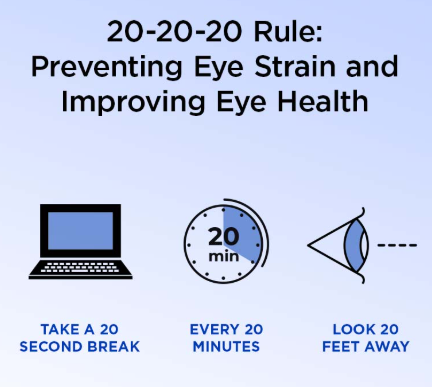
One of the easiest computer eye care habits is to follow the 20-20-20 rule. Every 20 minutes, look at an object approximately 20 feet away for at least 20 seconds. This gives your eyes a short break from continuous close-up focusing. You can look through a window, across your office, or toward a distant object. If you frequently forget, use a reminder on your computer or phone. The rule is simple, but consistency matters. It should be part of your work routine rather than something you remember only when your eyes start hurting.
2. Blink Fully and Regularly
Blinking helps spread tears across the eye surface and keeps it lubricated. When concentrating on a computer, people often blink less frequently or do not close their eyelids completely. Make a conscious effort to blink naturally throughout the day. During a break, gently close your eyes for a moment and then blink normally a few times. If your eyes frequently feel gritty or dry, blinking habits may help reduce discomfort, but persistent dryness may require evaluation for dry eye disease.
3. Keep Your Monitor at a Comfortable Distance
Your screen should not be so close that you feel the need to lean forward or squint. A distance of about an arm’s length—often approximately 20–28 inches, depending on screen size and your vision—is a reasonable starting point. Adjust the distance so that you can read comfortably without leaning toward the display. If you need to enlarge the text, use the computer’s zoom or display settings instead of moving your face closer. People with particular vision needs may require a different distance or prescription. Comfort and clear vision should guide your setup.
4. Position the Screen at the Right Height
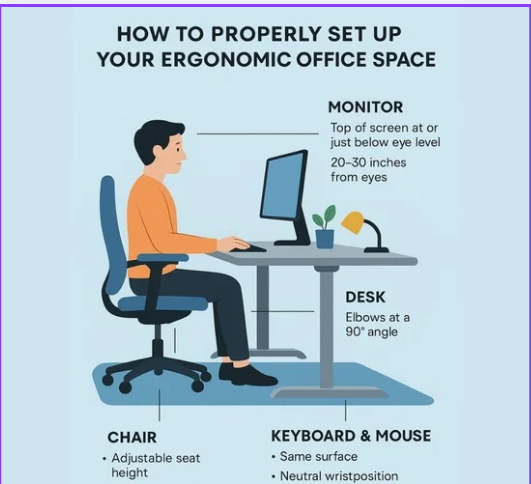
Screen position affects both visual comfort and posture. For many desk setups, the monitor works well when it is directly in front of you and the top of the display is around eye level or slightly below. You should be able to look slightly downward at the screen without bending your neck. If you use a laptop for long periods, consider a separate keyboard and mouse with a stand or riser to help position the display comfortably. Good positioning can help reduce the need to lean forward, tilt your head, or maintain an uncomfortable posture throughout the workday.
5. Adjust Screen Brightness and Text Size
A screen that is much brighter or darker than the surrounding environment can make reading uncomfortable. Adjust brightness to suit the room and increase text size if you are struggling to read. Use clear text, adequate contrast, and a comfortable font size. Avoid squinting at tiny text or leaning forward to read spreadsheets, emails, and documents. You can also change display scaling to make menus and text easier to see without changing the physical distance from your monitor. There is no single brightness setting that works for everyone. The goal is to make the content clear and comfortable in your lighting conditions.
6. Reduce Glare and Reflections
Glare can come from windows, overhead lights, desk lamps, and reflections on the monitor. It may cause you to squint, move your head, or adopt an awkward viewing angle. To improve eye protection from screens:
- Position your monitor away from direct window reflections.
- Avoid placing a bright light directly behind or in front of the display.
- Adjust blinds or curtains when sunlight creates glare.
- Change the screen angle if reflections appear.
- Consider a matte anti-glare screen filter if necessary.
A comfortable combination of screen placement and room lighting is often more useful than relying on a special accessory alone.
7. Take Breaks Beyond the 20-20-20 Rule
The 20-20-20 rule is a short visual break, not a replacement for getting up and moving. During longer work sessions, take regular breaks to stand, stretch, walk briefly, and change your focus from nearby objects to more distant surroundings. Short, frequent breaks may also help reduce neck, shoulder, and back discomfort. Try to include a longer break during extended periods of continuous work. The ideal schedule depends on your workload and workplace requirements. A break does not have to be complicated. Walking to refill your water, stretching your shoulders, or looking out of a window can help interrupt continuous screen use.

8. Manage Dryness During Screen Work
Dryness can be a significant part of computer eye strain. Air conditioning, fans, low humidity, contact lens use, and reduced blinking may make symptoms worse. Consider these measures:
- Avoid directing a fan or air-conditioning vent straight at your face.
- Blink fully and take regular screen breaks.
- Keep your workspace comfortably ventilated.
- If dryness persists, ask an eye doctor whether lubricating eye drops are suitable for you.
- If you wear contact lenses and experience discomfort, discuss appropriate lens use and alternatives with your eye-care professional.
Do not use medicated or redness-relieving eye drops repeatedly without professional advice. If dryness continues despite these steps, seek an eye examination. For more information, Read here: Dry Eye Causes, Symptoms and Treatment.
9. Do Not Depend on Blue-Light Glasses Alone
Blue-light glasses are often promoted as essential eye protection from screens. However, current evidence does not establish that the amount of blue light emitted by ordinary computer screens damages the retina, and blue-light-filtering glasses have not consistently been shown to relieve digital eye strain. Screen-related discomfort is often more closely associated with prolonged near work, reduced blinking, glare, and workstation conditions. If you use prescription glasses, make sure your prescription is appropriate for your working distance. Special computer glasses may help some people with particular focusing or prescription needs, but they should be selected with professional guidance. For evening use, reducing screen exposure close to bedtime and using suitable night settings may help with sleep routines. This is different from preventing eye damage.
10. Schedule Regular Eye Examinations
Even if you follow good computer eye care habits, you may still experience symptoms because of dry eye disease, refractive errors, focusing difficulties, or another eye condition. An eye examination can help assess visual clarity, your prescription, eye comfort, and possible causes of recurring headaches or blurred vision. If you already wear glasses, tell your eye doctor how much time you spend working at a computer. Your visual needs for reading, distance viewing, and computer work may differ. Do not delay professional advice if your symptoms persist, worsen, or interfere with work. Sudden vision changes, significant eye pain, or marked redness require prompt medical attention.
How to Create an Eye-Friendly Computer Workstation
Good computer eye care is not only about the eyes. Your desk arrangement, lighting, and sitting position can also affect comfort.
Set Up Your Workspace
Start with these practical adjustments:
- Place your monitor directly in front of you.
- Keep the screen at a comfortable distance.
- Position the display to minimize reflections.
- Use a chair and desk that support a relaxed posture.
- Keep frequently used documents near the monitor to avoid repeated awkward head movements.
- Make sure text is large enough to read without leaning forward.
- Use comfortable room lighting rather than working in a dark room with an intensely bright display.
If You Work on a Laptop
Laptop screens are often positioned too low when used on a desk for extended periods. Raising the laptop may improve neck position, but you may then need a separate keyboard and mouse to keep your arms comfortable. If you work from different locations, adjust your setup each time rather than maintaining a poor position for hours.
If You Use Multiple Screens
Arrange monitors so that your primary screen is directly in front of you. If you use two displays equally, position them to minimize repeated neck turning. Keep the brightness, text size, and viewing distance comfortable across the screens.
Does Computer Use Permanently Damage Your Eyes?
For most people, ordinary computer use is not known to cause permanent eye damage simply because they look at a screen. However, prolonged screen use can lead to temporary discomfort, dryness, and focusing-related symptoms. This does not mean that every symptom should be dismissed. Persistent blurred vision, recurring headaches, redness, or eye pain may be associated with an underlying issue that needs assessment. Children and adults may also have different visual needs. If a child frequently squints, sits very close to a display, or complains of headaches or blurry vision, arrange an appropriate eye examination. The goal of computer eye care is to improve comfort, reduce avoidable strain, maintain good visual habits, and identify problems that require professional attention.
When Should You See an Eye Doctor?
Consider booking an eye examination if:
- Eye strain continues despite taking breaks and adjusting your workstation.
- Your eyes frequently burn, feel dry, or become red.
- You experience recurring headaches during computer work.
- Your vision becomes blurred or fluctuates regularly.
- You find yourself squinting or moving closer to the screen to read.
- You have difficulty focusing when switching between near and distant objects.
- You have existing eye conditions or a prescription that may need review.
Seek urgent medical care for sudden vision loss or sudden significant vision changes. Significant pain, marked redness, or strong light sensitivity also requires prompt assessment. A professional can help determine whether your symptoms are related to screen habits, dry eye, an outdated prescription, or another condition.
Frequently Asked Questions About Computer Eye Care
1. What is the best way to prevent computer eye strain?
Take regular visual breaks, follow the 20-20-20 rule, blink fully, position your screen comfortably, reduce glare, and make text easy to read. If symptoms continue, arrange an eye examination.
2. How often should I take breaks from a computer screen?
A useful starting point is the 20-20-20 rule: every 20 minutes, look at something around 20 feet away for 20 seconds. Also take regular movement breaks during longer work sessions.
3. Can computer screens cause dry eyes?
Prolonged screen use can contribute to dry eye symptoms because people may blink less frequently or incompletely while concentrating. Air conditioning, fans, contact lenses, and existing dry eye disease may also contribute.
4. Are blue-light glasses necessary for computer work?
Not everyone needs blue-light-filtering glasses. Evidence has not established that ordinary computer-screen blue light damages the retina, and these glasses have not consistently been shown to relieve digital eye strain. Ask an eye-care professional about your specific visual needs.
5. What is the ideal distance between the eyes and a computer screen?
About an arm’s length is a practical starting point for many adults, often around 20–28 inches. Adjust according to screen size, text clarity, posture, and individual visual needs.
6. Is computer use safe for people who wear glasses?
Yes, many people who wear glasses can work comfortably on computers. However, an outdated prescription or difficulty focusing at the screen distance may contribute to symptoms. An eye examination can help determine whether your glasses need adjustment.
7. Can computer eye strain cause headaches?
Yes, prolonged near work, glare, focusing difficulties, and uncorrected vision can contribute to headaches. Frequent or severe headaches should be evaluated rather than automatically attributed to screen use.
8. Should I use eye drops after working on a computer?
Not everyone needs eye drops. If you experience dryness, lubricating drops may help, but persistent symptoms should be assessed. Ask an eye doctor or pharmacist which product is appropriate, particularly if you need drops frequently.
9. Is dark mode better for eye health?
Dark mode may feel more comfortable for some users, especially in low-light conditions, but it is not a guaranteed way to prevent eye strain. Choose a display setting with clear, readable text and comfortable contrast.
10. When should I consult an eye doctor for computer-related symptoms?
Seek an eye examination if dryness, headaches, blurred vision, redness, or discomfort persist despite changing your screen habits. Sudden vision changes or significant eye pain require urgent medical attention.
Conclusion: Make Computer Eye Care Part of Your Daily Routine
Working on a computer is an important part of modern life, but long hours of continuous screen use can make your eyes feel tired, dry, and uncomfortable. Simple habits such as regular breaks, complete blinking, comfortable screen positioning, suitable lighting, and reducing glare can help manage computer eye strain. Remember that eye protection from screens is not about buying a single product or relying only on blue-light glasses. It involves good screen habits, an appropriate workstation, and attention to symptoms that do not improve. If you experience recurring dryness, blurred vision, headaches, or eye discomfort, an eye examination can help identify the cause and guide appropriate care.