

For many people, spending several hours every day in front of a computer, laptop, tablet or smartphone is unavoidable. Whether you work from home, attend online classes, manage social media, edit videos, study, or simply spend your free time scrolling, prolonged screen use can leave your eyes feeling uncomfortable. You may notice dryness, burning, tired eyes, blurred vision, watering or difficulty keeping your eyes comfortable after several hours of digital work. This is often described as digital eye strain or computer vision syndrome. One important reason screen use can contribute to dry eyes is that people tend to blink less frequently while concentrating on a screen. Reduced or incomplete blinking can allow the tear film on the eye surface to become less stable. The good news is that small changes to your screen habits and workspace can make a significant difference in everyday eye comfort. In this guide, we’ll explain why screens can cause dry eyes, how to reduce dry eyes from screens, how to set up your workstation, how often to take breaks, and when persistent symptoms should be evaluated by an eye specialist.
Can Screens Really Cause Dry Eyes?
Yes, prolonged screen use can contribute to dry-eye symptoms. The screen itself is not necessarily “drying out” the eye. One important factor is what happens while you are concentrating on the screen.
When reading or working digitally, you may:
- Blink less frequently
- Make incomplete blinks
- Keep your eyes open for longer periods
- Concentrate continuously at a fixed distance
- Spend many hours without proper visual breaks
Blinking spreads tears over the eye surface and helps maintain the tear film. Screen use can reduce blinking, which may contribute to dryness. Environmental factors such as air conditioning, fans, low humidity and airflow can make the problem more noticeable.
What Is Digital Eye Strain?
Digital eye strain refers to a group of eye, visual and physical symptoms associated with prolonged use of computers, smartphones, tablets and other digital devices.
Symptoms can include:
- Dry eyes
- Burning
- Eye fatigue
- Grittiness
- Redness
- Blurred vision
- Headaches
- Difficulty focusing
- Watery eyes
- Discomfort around the eyes
Computer vision syndrome can also be associated with neck, shoulder and back discomfort because screen use is closely connected with posture and workstation ergonomics. This means that reducing digital eye strain isn’t only about buying special glasses. Your screen habits, blinking, breaks, lighting, posture and workspace setup all matter.
Why Do My Eyes Get Dry While Using a Computer?
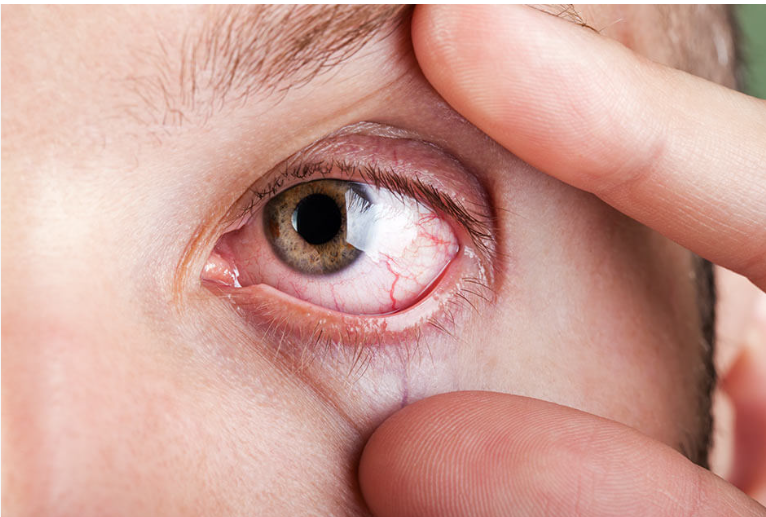
There are several reasons.
Reduced Blinking
This is one of the most important factors. When you concentrate on text, spreadsheets, coding, design work or videos, your normal blinking pattern can change. Less frequent blinking means the tear film is not being refreshed and redistributed as regularly across the eye surface. The Dr.Ripan Kaur specifically notes that people may blink less when looking at computer or tablet screens, contributing to dry eye.
Your Eyes Stay Open for Longer
Even when you are blinking, the quality of the blink matters. Incomplete blinking may leave parts of the eye surface exposed for longer. This can increase discomfort, particularly during prolonged computer work. EyeWiki notes reduced and incomplete blinking as factors associated with digital-device-related dry-eye symptoms.
Air Conditioning and Fans
Your computer may not be the only problem. If your workstation is directly underneath an air conditioner or next to a fan, moving air can increase tear evaporation. A dry office environment can therefore make screen time dry eyes feel worse.
12 Ways to Reduce Dry Eyes From Screens
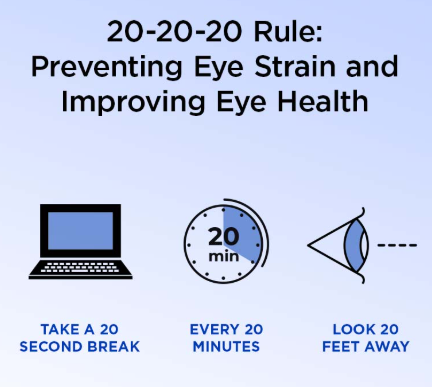
1. Follow the 20-20-20 Rule
One of the simplest habits for reducing digital eye strain is the 20-20-20 rule.
Every: 20 minutes → look about 20 feet away → for at least 20 seconds.
This gives your eyes a regular opportunity to stop focusing continuously at the screen. The Dr. Ripan Kaur recommends this approach as a practical way to give your eyes a break during prolonged screen use.
Simple Reminder
If you work for eight hours, don’t wait until your eyes hurt before taking a break. Make the break part of your routine.
2. Make Yourself Blink More Often
When you’re deeply focused on a screen, you may forget to blink. Try consciously blinking several times whenever you notice yourself staring.
A simple habit is: Look at the screen → pause → blink normally → continue.
You can also use short “blink breaks” between tasks.
For example: Email → blink break → document → blink break → meeting → blink break.
The goal isn’t to force your eyes to blink constantly. It is to avoid long periods of uninterrupted staring.
3. Take Longer Breaks During Long Work Sessions

The 20-20-20 rule provides short visual breaks, but longer work sessions should also include time away from the workstation.During a longer break:
- Stand up
- Walk around
- Look into the distance
- Stretch your neck and shoulders
- Avoid immediately switching from your computer to your phone
A break from the computer that becomes another 20-minute phone session may not give your eyes much of a rest.
Set Up Your Computer Correctly
Your workstation can influence how much visual effort you need to use.
Keep the Screen at a Comfortable Distance

Avoid keeping the monitor unnecessarily close to your face. Your screen should be positioned so that you can comfortably read the content without leaning forward or squinting. The ideal setup can vary depending on screen size, text size, vision correction and individual comfort.
Position the Monitor Slightly Below Eye Level
A slightly downward gaze can reduce the amount of exposed eye surface compared with looking upward. EyeWiki’s review of computer vision syndrome discusses positioning the monitor so that the user looks slightly downward.
A practical setup is: Top of monitor → around eye level or slightly below rather than having to look upward for long periods.
Increase Text Size Instead of Leaning Forward
If you constantly move closer to the screen to read small text, increase the text size.
Try adjusting:
- Browser zoom
- Operating-system scaling
- Document font size
- App text size
Larger, comfortable text can reduce the need to squint or lean toward the monitor.
Fix Your Screen Lighting
Lighting can make screen work considerably more comfortable.
Avoid Strong Glare
Glare from windows, overhead lights or shiny surfaces can make it harder to see the screen comfortably. Try to position your monitor so that bright windows are not directly reflected on the screen. EyeWiki notes that improper workspace lighting and reflections can aggravate symptoms of computer vision syndrome.
Don’t Work in Complete Darkness
Using a bright screen in an otherwise completely dark room can feel uncomfortable. Instead, aim for balanced room lighting. Your screen should not be dramatically brighter or darker than the surrounding environment.
Adjust Screen Brightness
If your display feels painfully bright, reduce the brightness. If it is too dim and you find yourself squinting, increase it. There isn’t one brightness setting that works for everyone. Comfort is the goal.
Control Airflow Around Your Desk
If you frequently experience dry eyes while working, look around your workstation.
Ask:
Is air blowing directly into my face? If yes, try moving:
- Your chair
- The fan
- The AC vent direction
- Your desk
- Your monitor
Dry or moving air can increase tear evaporation and worsen dry-eye symptoms.
Consider Humidity in Your Workspace
Very dry indoor air can contribute to eye discomfort. If your workplace or home environment is particularly dry, a humidifier may be useful for some people. The goal is not to create an excessively humid environment. Instead, maintaining comfortable indoor humidity can help reduce environmental dryness. The Dr. Ripan Kaur includes humidification among lifestyle measures that may help people with dry-eye symptoms.
Don’t Forget Your Phone
Many people follow good computer habits but spend their breaks scrolling on a smartphone. That means the eyes may remain focused on another nearby screen for hours. If you are trying to reduce screen time dry eyes, consider reducing unnecessary phone use between work sessions. Instead of:
Computer → phone → computer → phone
try:
Computer → distance break → movement → computer.
Even short periods away from near-screen viewing can make your routine more balanced.
What About Contact Lenses and Screen Use?
People who wear contact lenses may experience more discomfort during prolonged screen sessions. If your eyes become dry while wearing contacts, consider discussing your symptoms with an eye-care professional. During prolonged computer work, some people may find spectacles more comfortable than contact lenses, depending on their individual situation. Never continue wearing contact lenses through significant pain, marked redness or vision changes without seeking professional advice.Proper contact-lens hygiene is also important for reducing the risk of eye infections. The Dr. Ripan Kaur recommends washing hands before handling lenses and following appropriate cleaning and replacement practices.
Do Blue-Light Glasses Prevent Dry Eyes?
Blue-light glasses are frequently marketed as a solution for digital eye strain. However, they should not be considered a guaranteed treatment for screen-related dry eyes. The issue with screen-related dryness is often related to blinking, tear-film stability, prolonged near work and the surrounding environment, rather than simply blue light. EyeWiki’s review notes that evidence has not established blue-blocking lenses as a reliable solution for computer vision syndrome, and the American Academy of Ophthalmology does not recommend special eyewear simply for computer-screen use on the basis of screen light damaging the eyes. That doesn’t mean blue-light filtering features can never be useful for individual comfort or nighttime screen habits; it means they should not replace basic eye-care habits.
Can Artificial Tears Help Screen-Related Dry Eyes?
For people who have dry-eye symptoms, lubricating eye drops, commonly called artificial tears, may provide relief. However, screen-related dryness can have different contributing factors. If you need drops frequently or your symptoms continue despite using them, it is better to have your eyes evaluated rather than continually treating the symptom yourself. The Dr. Ripan Kaur notes that artificial tears are commonly used for mild dry eye, while more persistent cases may require additional evaluation and treatment.
Important
Do not randomly use prescription or medicated eye drops without medical guidance.
A Simple Screen-Eye-Care Routine for Your Workday
Here’s a practical routine you can follow.
Before Starting Work
- Adjust your chair and monitor.
- Check for screen glare.
- Keep direct airflow away from your face.
- Make sure the text is comfortably readable.
During Work
Every 20 minutes: Look away for 20 seconds.
Also:
- Blink normally.
- Relax your facial muscles.
- Avoid staring continuously.
- Keep a comfortable posture.
Every Few Hours
Take a longer break. Stand up, walk around and look at something farther away.
After Work
Instead of immediately switching to your phone, give your eyes some time away from near-screen tasks.
7 Common Screen Habits That May Make Dry Eyes Worse
1. Staring Without Blinking
Continuous staring can reduce blinking and increase ocular-surface exposure.
2. Working Under Direct AC
Air blowing directly toward your eyes can worsen evaporation.
3. Very Small Text
Small text encourages squinting and leaning toward the screen.
4. Strong Screen Glare
Reflections can increase visual discomfort.
5. Working for Hours Without Breaks
Long uninterrupted sessions can increase digital eye strain.
6. Using Your Phone During Every Break
Your eyes may never actually get a screen-free period.
7. Ignoring Persistent Symptoms
If dryness continues despite improving your screen habits, the problem may not be caused by screens alone.
Is Screen-Related Dry Eye the Same as Dry Eye Disease?
Not always. Screen use can trigger or worsen symptoms, but some people have underlying dry eye that becomes more noticeable during digital work. Other factors—including age, medications, environmental conditions, contact lenses, eyelid problems and certain medical conditions—can also contribute to dry eye. Therefore, reducing screen exposure may help symptoms without necessarily addressing every underlying cause.
When Should You See an Eye Specialist?
If your eyes occasionally feel tired after a long computer session and improve after rest, simple changes may help. However, arrange an eye examination if you experience:
- Persistent dryness
- Recurrent burning
- Frequent redness
- Regular blurred vision
- Significant eye fatigue
- Ongoing watering
- Pain
- Light sensitivity
- Contact-lens discomfort
- Symptoms that continue despite improving screen habits
A professional examination can determine whether the symptoms are related to dry eye, digital eye strain or another eye condition. The Dr. Ripan Kaur notes that dry-eye evaluation may include assessing tear production, tear stability and eyelid structure.
When Is Screen-Related Eye Discomfort More Concerning?
Do not automatically blame a screen if you experience significant symptoms. Seek prompt professional care for symptoms such as:
- Sudden vision changes
- Significant eye pain
- Severe redness
- Eye injury
- Marked light sensitivity
- A foreign object in the eye
These symptoms may require evaluation for causes beyond ordinary digital eye strain.
Can looking at screens cause dry eyes?
Prolonged screen use can contribute to dry-eye symptoms, particularly because people tend to blink less frequently while concentrating on digital devices.
How can I reduce dry eyes from screens?
Take regular breaks, follow the 20-20-20 rule, blink consciously, reduce glare, position your monitor appropriately and avoid direct airflow toward your eyes.
What is the 20-20-20 rule?
Every 20 minutes, look at something approximately 20 feet away for 20 seconds. The Dr. Ripan Kaur recommends this as a practical screen-break habit.
Why do my eyes become dry when using my laptop?
Concentrating on a laptop can reduce blinking, which may increase tear evaporation and contribute to dryness. The surrounding environment can also make symptoms worse.
Does using a phone cause digital eye strain?
Extended smartphone use can contribute to digital eye strain, particularly when it involves prolonged near viewing without breaks. Symptoms may include tired, dry, burning or uncomfortable eyes.
Should I blink more while using a computer?
Yes. Regular blinking helps redistribute the tear film across the eye surface and is particularly useful when concentrating on a screen.
Do blue-light glasses cure dry eyes?
No. Blue-light filtering glasses should not be considered a treatment for dry eye. Screen-related dryness is often more closely connected to blinking, tear-film stability, visual workload and environmental factors.
Can air conditioning make screen-related dry eyes worse?
Yes. Dry air and direct airflow can increase tear evaporation and may worsen symptoms.
Can artificial tears help?
Lubricating eye drops can help some people with dry-eye symptoms. If symptoms are frequent or persistent, an eye examination is advisable to identify the underlying cause.
Should I stop using screens completely?
For most people, completely avoiding screens is neither realistic nor necessary. Instead, focus on better screen habits, regular breaks, blinking, appropriate workstation setup and addressing persistent symptoms.
Final Takeaway

Dry eyes from screens are often connected to how we use our digital devices—not simply the screen itself. Long periods of concentration can reduce blinking, while dry indoor air, fans, air conditioning, glare, poor workstation setup and uninterrupted screen sessions can add to discomfort. The most useful strategy is therefore a combination of small habits: Blink regularly + follow the 20-20-20 rule + reduce glare + position your monitor comfortably + control airflow + take longer breaks + don’t ignore persistent symptoms. If your eyes continue to feel dry despite changing your screen habits, don’t assume that screen time is the only explanation. An underlying dry-eye condition or another eye problem may need to be evaluated.